 EditClaws
Make the screen the content
Choose a screen or window and capture the process you want to share.
Record how to use an app and how a task unfolds. Cut unnecessary time from the recording and add captions and guidance elements.
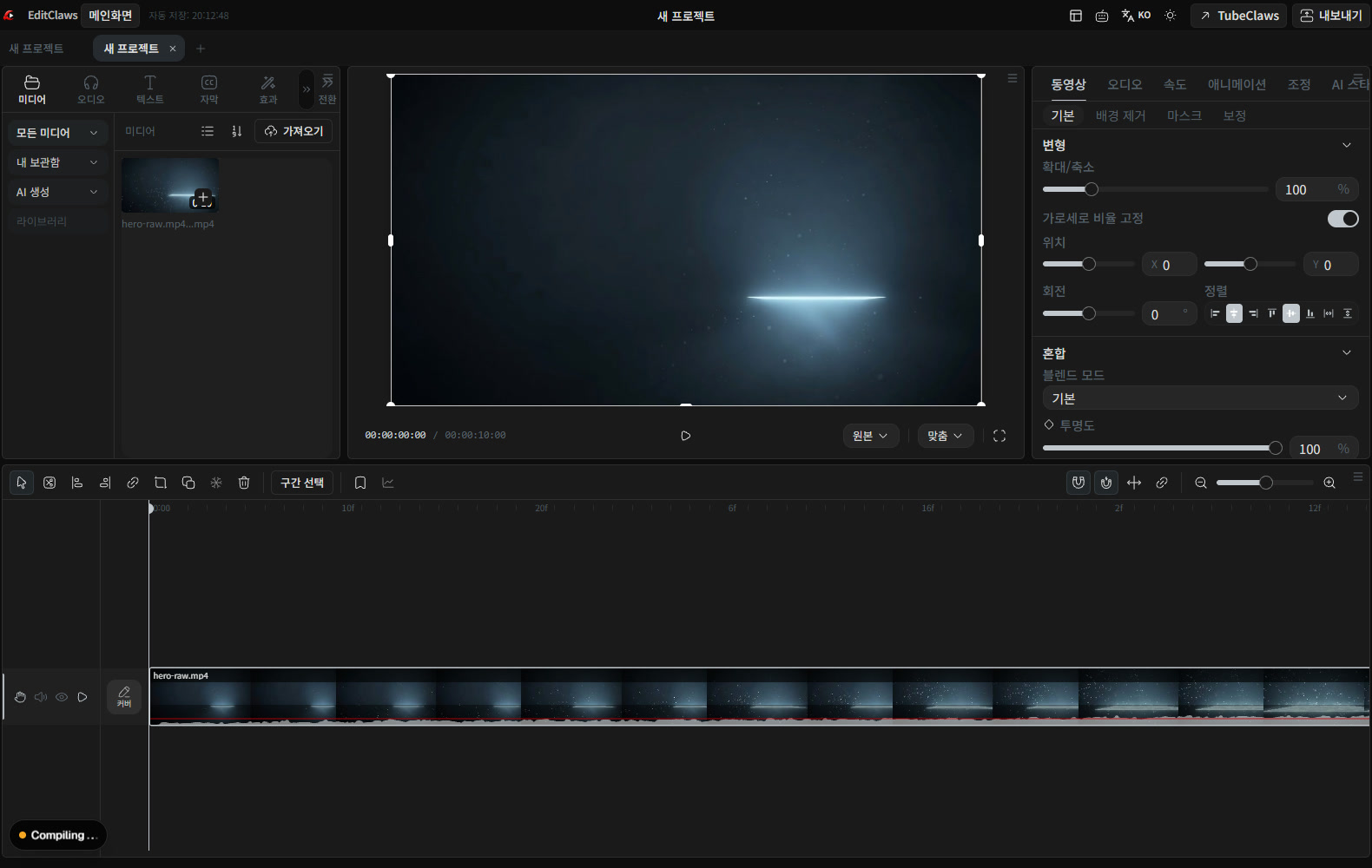
Choose a screen or window and capture the process you want to share.
Bring in the recording and remove unnecessary waiting sections.
Add captions, zooms, and graphics so viewers can follow along.

Open the window you will explain and check for unnecessary notifications and personal information. Use a short test recording to make sure the text size and sound come through clearly.

You can cut out time spent waiting for a file to open and any mistakes after recording. Add text and graphics to important steps so viewers can follow along.
Click each step to see the editing order. The actual work takes place in the EditClaws app for Windows.
Choose a screen or window and capture the process you want to share.
Bring in the recording and remove unnecessary waiting sections.
Add captions, zooms, and graphics so viewers can follow along.
It depends on the operating system, recording method, and permissions granted. Test briefly before the main recording and play it back to check.
Screen recording requires Creator or above. Screen and system-audio recording support varies with the operating system and app permissions.
Download the Windows installer and install the app. Create a project in the app to start editing. Some features require a network connection, sign-in, or AI credits.
MULTITRACK EDITING01Layer and refine video, music, and text to turn the flow in your head into one finished timeline.
TRIM & SPLIT02Cut away slow openings and empty space, then decide exactly where each scene begins and ends.
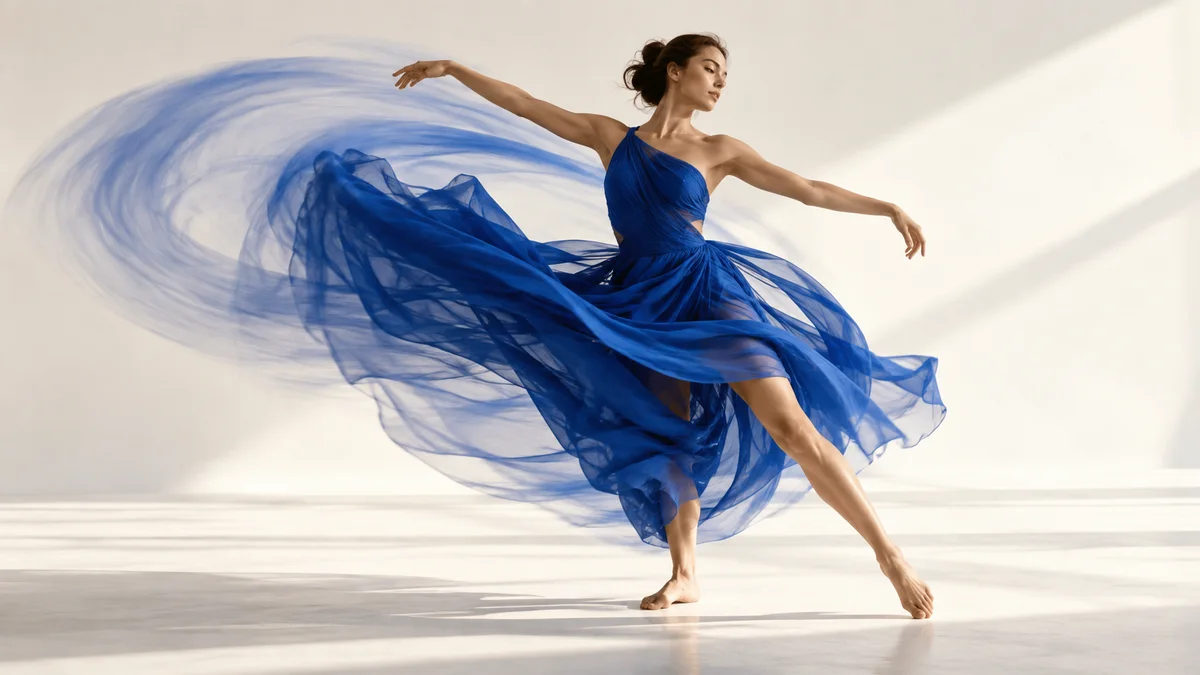 KEYFRAME ANIMATION
Place changes in position, size, rotation, and opacity over time to design movement that is yours.
Install the app and start with a short clip. Feature guides can help you get started.
Download the app