 EditClaws

Powered by CLAW ENGINE
A video engine built for light, responsive editing.
 01 · SEA
 02 · RIDE
 FX · FLASH
 03 · DRIVE
 FX · STORM
 04 · CHASE
 05 · EDITCLAWS
EDITCLAWS / AI VIDEO EDITOR
Explore the features
Loading the introThe video is unavailable. Showing the still image.
Describe your edit.
Shape it with AI.
A video engine built for light, responsive editing.
Speech-to-text captions with detailed style controls.
Connect Claude Code and Codex to inspect and edit your timeline.
External AI connections require an account and setup for the chosen service.
AI captions, keyframes, background removal, and highlight clips.
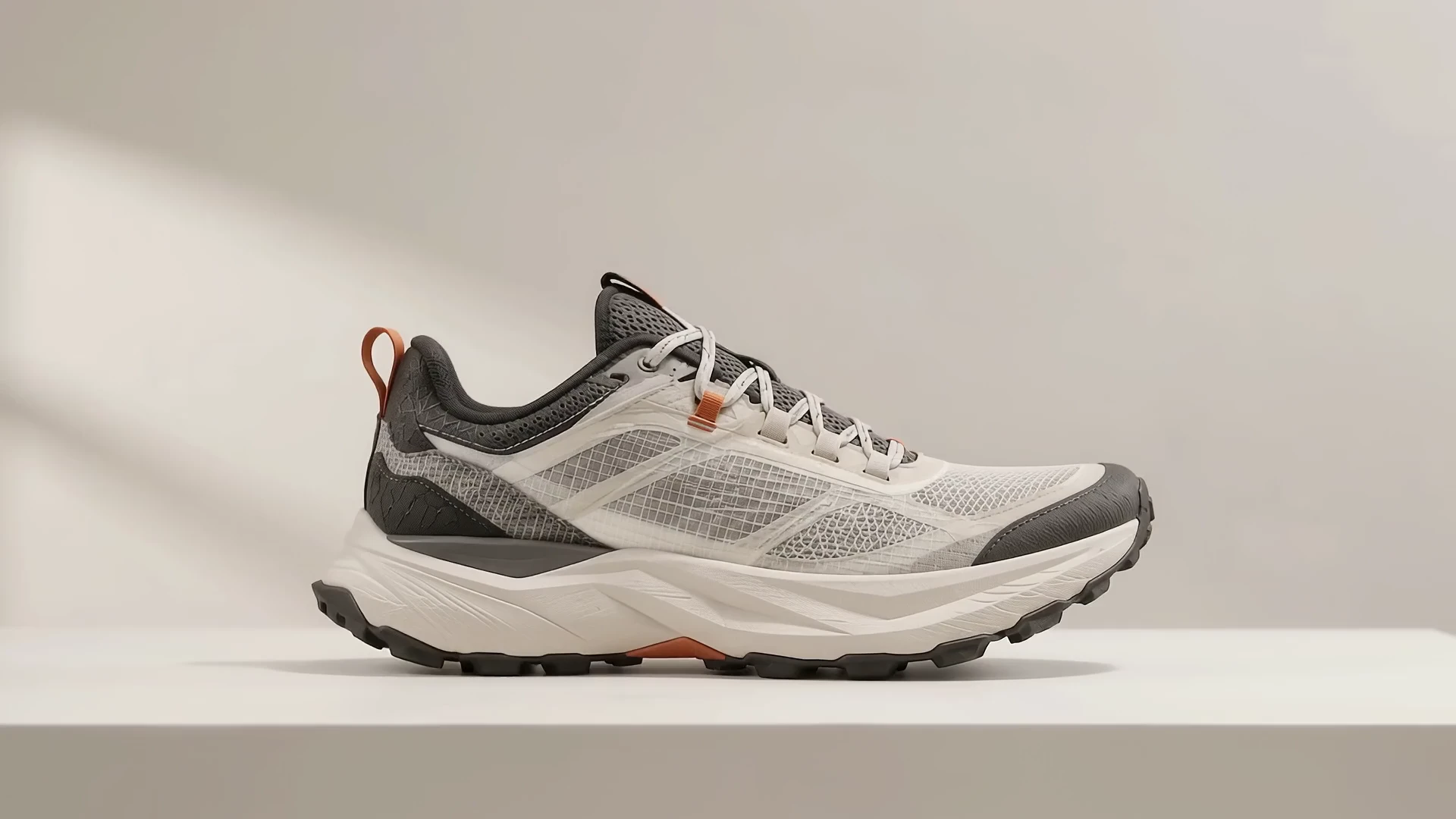
Fine control over position, scale, rotation, and opacity.
Explore this feature
Turn speech into captions with AI. Refine the text, timing, and style.
Explore this feature
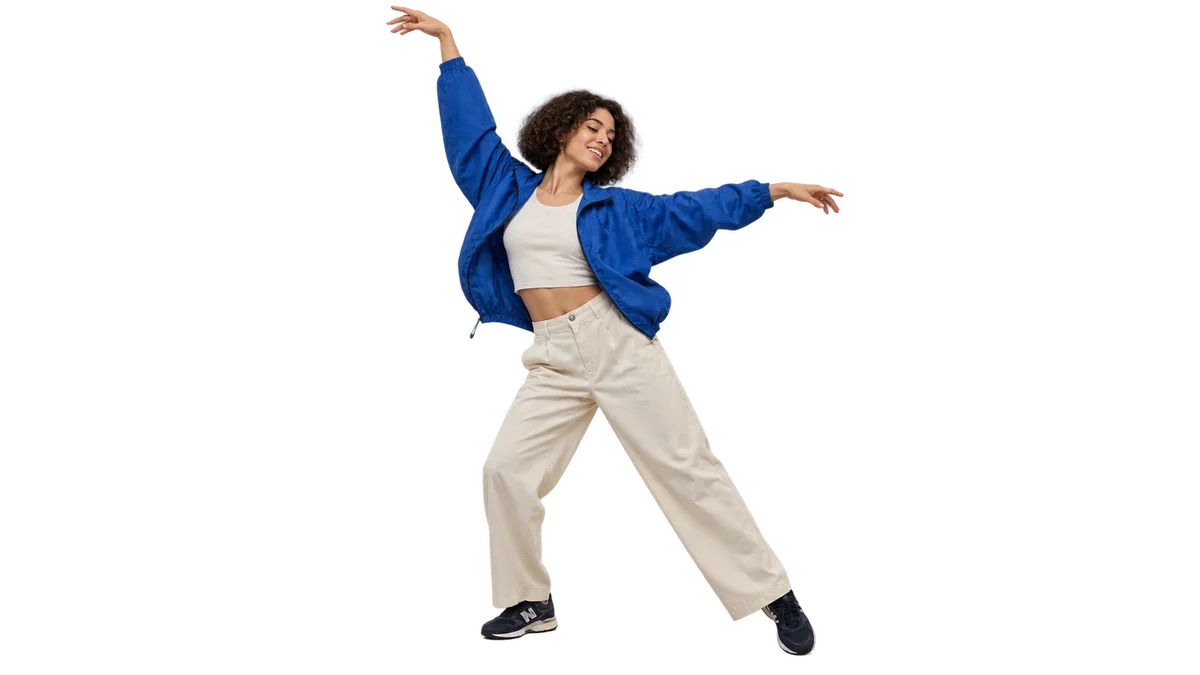 CHANGE
Keep the person. Change the setting. Compose a new scene.
Explore this feature16:9 · Landscape source01 / 9:16Story opening02 / 9:16Work in detail03 / 9:16The finished resultFind key moments in long videos. Start your clips with AI-suggested selections.
Explore this featureAI-created images and explanatory graphics. Editing results depend on your source material and settings.
Explore all featuresTemplates, music, filters, and titles to bring your video together.
Explore the editing tools
Your images and words, in a ready-made layout.
YOUR FOOTAGE / YOUR STORYAn example illustrated with images and motionArrange video, photos, and audio on one timeline.
 MOTION / FOCUS / IMPACTAn example illustrated with images and motion
Shape each effect with control over strength and timing.

Balance voice, music, and sound effects.

Set the mood with brightness, contrast, and color temperature.
 An example illustrated with images and motion
Reactions and markers that draw the eye.

Make an impression with type and motion.
Find the rhythm between scenes with a choice of transitions.
 AI AUTO CAPTIONSEvery moment becomes a story.
Spend less time transcribing speech and more time refining the content and rhythm of your captions.
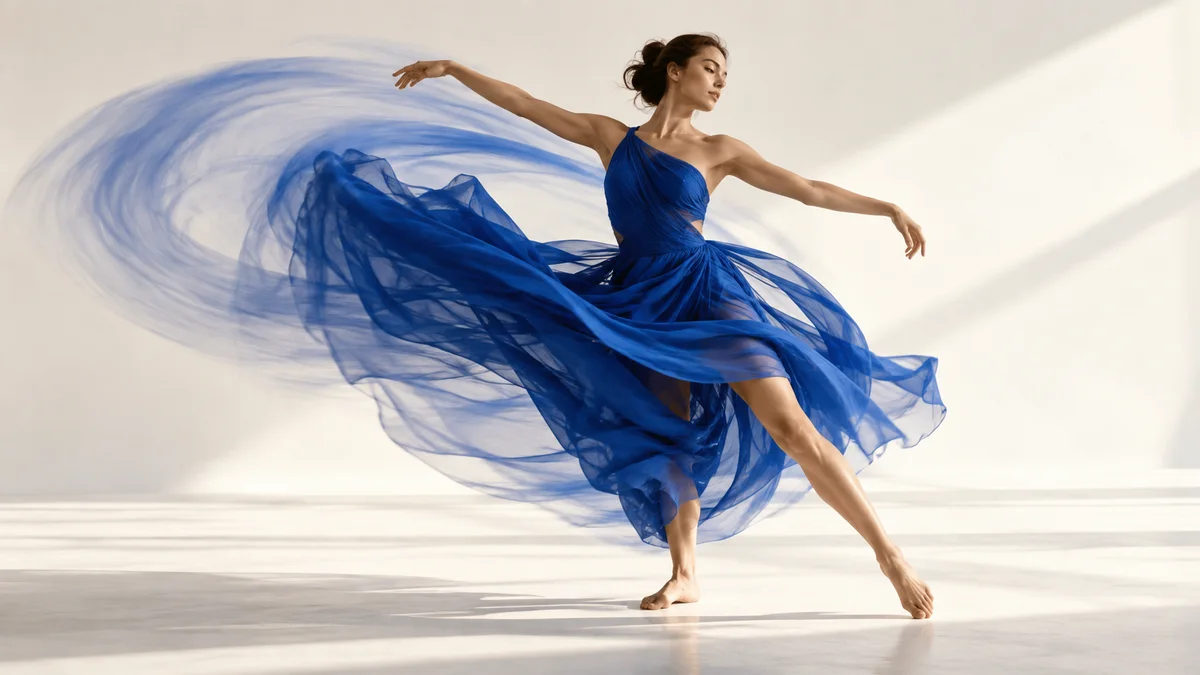 KEYFRAME ANIMATION
Place changes in position, size, rotation, and opacity over time to design movement that is yours.
 BACKGROUND REMOVAL✧ REMOVE BACKGROUND
Separate a subject from its background, composite a new scene, and expand the story inside the frame.
 COLOR & FILTERS04
Adjust brightness and color in captured footage, then use filters to create a consistent mood.
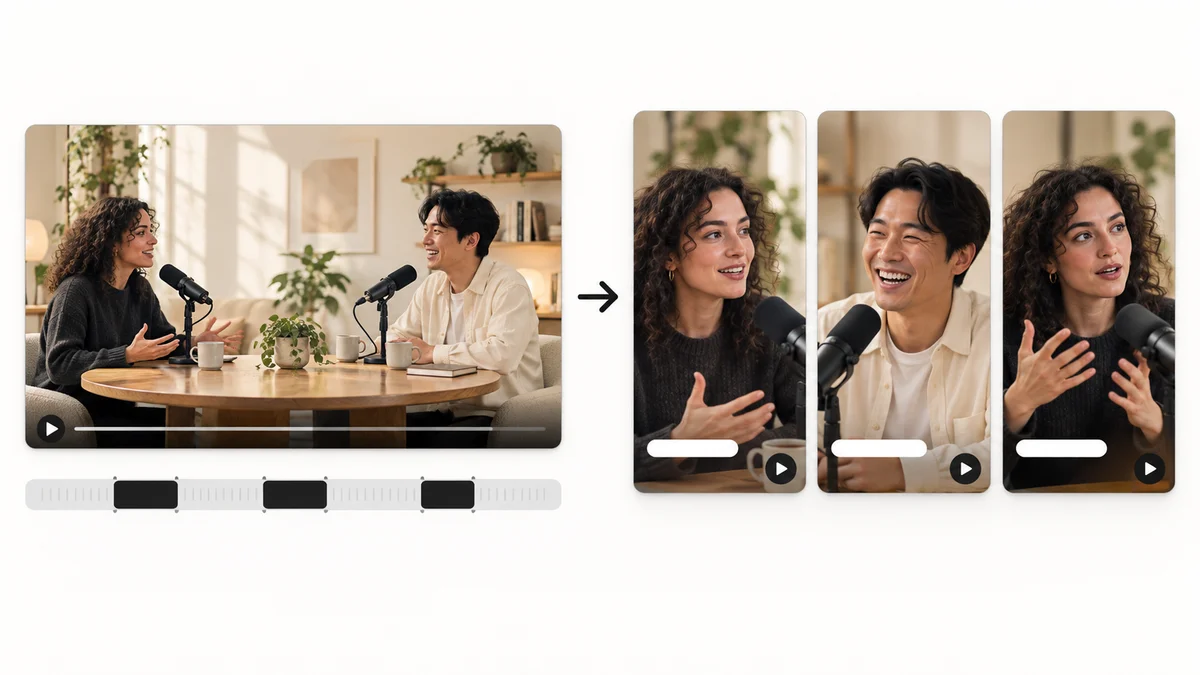 AI HIGHLIGHTS05
Find candidate scenes in long content and reshape them into a story that works as a short video.
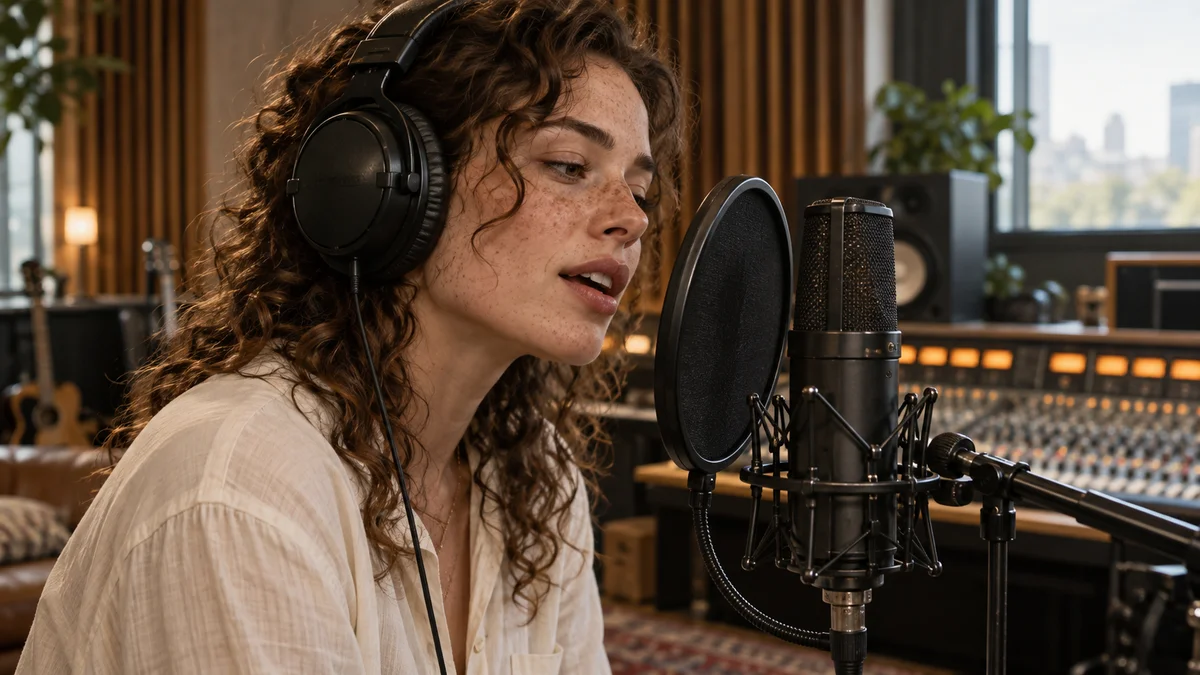 AUDIO EDITING06
Balance conversation and music, and place sound that matches the transitions between scenes.
Brightness, contrast, color temperature.
Drag the slider to compare before and after.
Import your clips and photos, arrange them,
then add captions and music before exporting.
Import video, photos, and audio from your computer, then add them to the timeline.
Your first project guide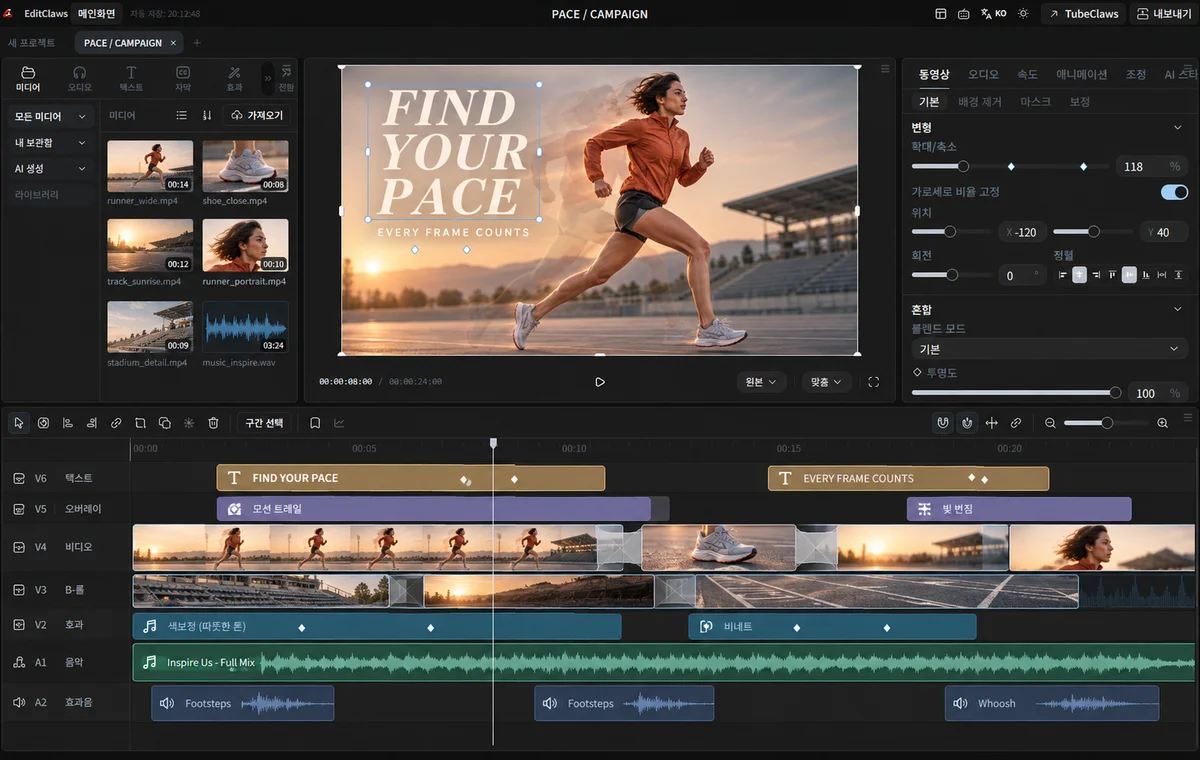 Editing illustration · AI-created image
Learn the flow of a first project, from bringing in sources to exporting the finished file.

Editing gets easier when you understand the relationship between tracks, clips, and the playhead.
Before size, think about sentence length, display time, and contrast with the background.
A look at editing with EditClaws, scene by scene. From travel footage to interviews, here is the path to a finished video.
Short travel clips are placed in order and set to music. A few changes to the sequence turn a day worth remembering into a video.
Overlapping speech is trimmed away and the lines that matter are captioned. With the flow cleaned up, the point of the interview comes through.
Installation, editing, AI credits, and export. Find the essentials for your first project.
Visit the help centerEditClaws is a video editing application for Windows PCs. It brings timeline editing, AI captions, keyframes, effects and audio tools together for short-form and long-form videos.
The Free plan includes a watermark on standard exports. Creator provides watermark-free exports and screen recording.
Ordinary editing and rendering run on your device. Features using external AI services, such as captions and translation, may send the data needed for the task to those services.
Tasks using external AI require credits. Usage depends on the feature, model and amount of content, with an estimate shown before you run the task. Timeline editing and ordinary exports do not use AI credits.
You can browse this website on mobile. Edit videos in the EditClaws app installed on a Windows PC. A dedicated mobile editing app is not available.
Silence removal requires Creator or above. Detection, preview and applying edits run on your device with no additional credits. Optional filler detection uses credits for AI transcription; reusing saved transcripts costs 0 credits. Review the estimate before starting.
Credits purchased in separate top-up packs do not expire. Signup credits and monthly subscription allocations follow their displayed expiry terms. Check the plan selection page for available top-up packs.
Yes. Review the generated captions, then refine the text, timing, and style. Check names, numbers, and specialist terms against the original audio.
Adjust the aspect ratio and each clip’s size and position to reframe the video. For a portrait version, check that faces and captions stay inside the frame.
Make your first project with a few short clips. Put the scenes in order, trim what you do not need, then add captions and music. Our first-video guide walks you through the process.