 EditClaws
Korean typography
Choose type with Korean captions in mind and set the mood of the video.
Choose an eye-catching typeface for titles and an easy-to-read one for longer explanations. Set the video’s tone by adjusting fonts and spacing.
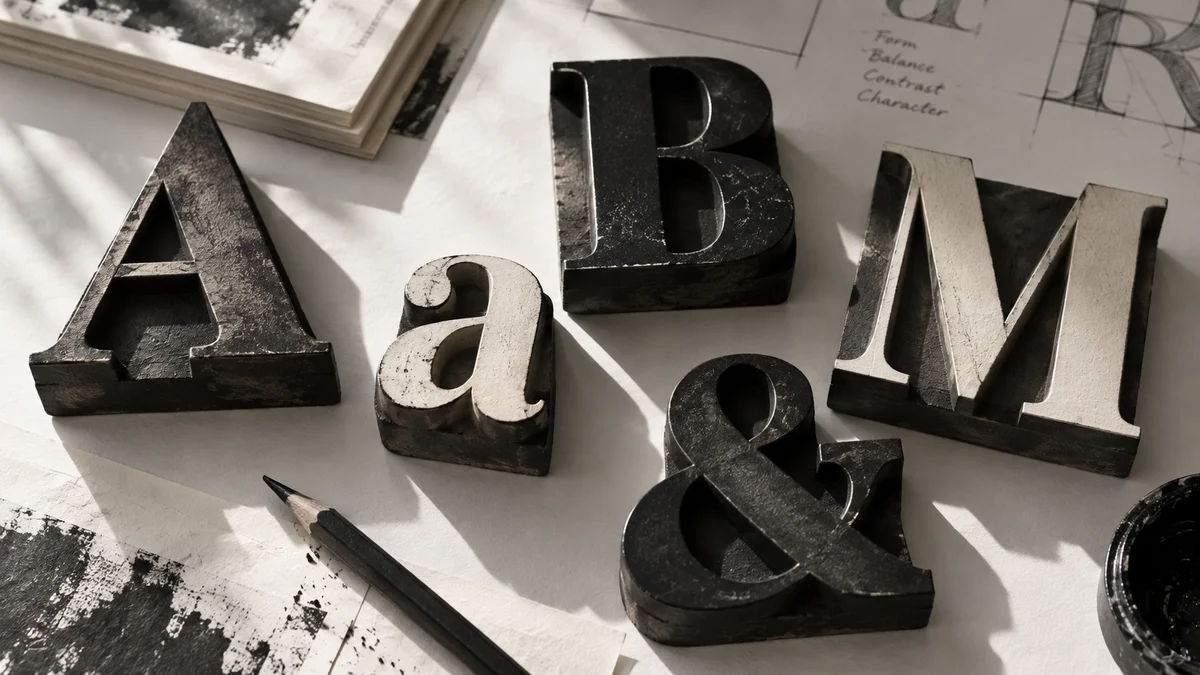
Choose type with Korean captions in mind and set the mood of the video.
Edit size, spacing, and alignment to balance the frame.
Load a custom font where the environment and plan support it, and carry your brand through.
Choose typefaces for their roles, such as a bold title and a plain body. Adjust size and weight within two typefaces to keep things orderly instead of mixing many fonts.
Even at the same size, Korean and English can differ in height and density depending on the font. Enter the sentence you will use and adjust line and letter spacing.
Click each step to see the editing order. The actual work takes place in the EditClaws app for Windows.
Choose type with Korean captions in mind and set the mood of the video.
Edit size, spacing, and alignment to balance the frame.
Load a custom font where the environment and plan support it, and carry your brand through.
This is handled through the custom font feature. Check the supported formats and plan, and make sure the same font is available when you open the project in another environment.
Check the font license and permitted use whenever you use an external font.
Download the Windows installer and install the app. Create a project in the app to start editing. Some features require a network connection, sign-in, or AI credits.
 AI AUTO CAPTIONSEvery moment becomes a story.
Spend less time transcribing speech and more time refining the content and rhythm of your captions.
CAPTION STYLES02Give everything from clear information captions to attention-grabbing emphasis captions a style that belongs in the scene.
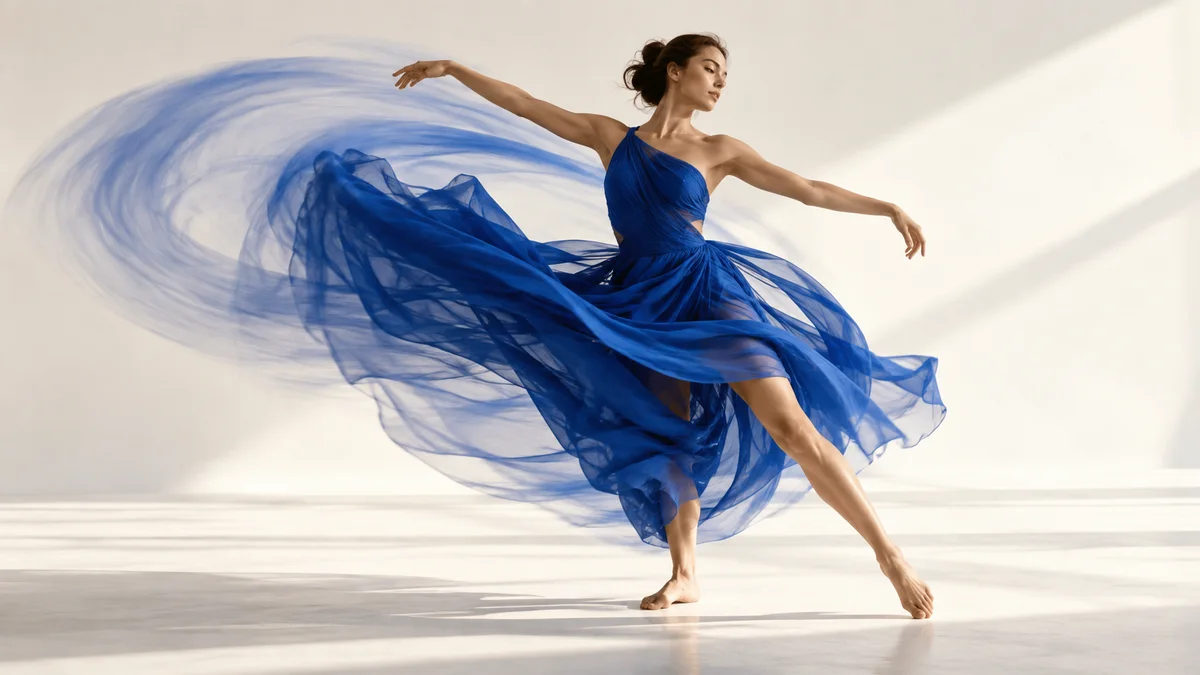 KINETIC TYPE03
Stage titles as they enter and leave, then finish the scene with kinetic typography.
Install the app and start with a short clip. Feature guides can help you get started.
Download the app