 EditClaws
Subject-first scenes
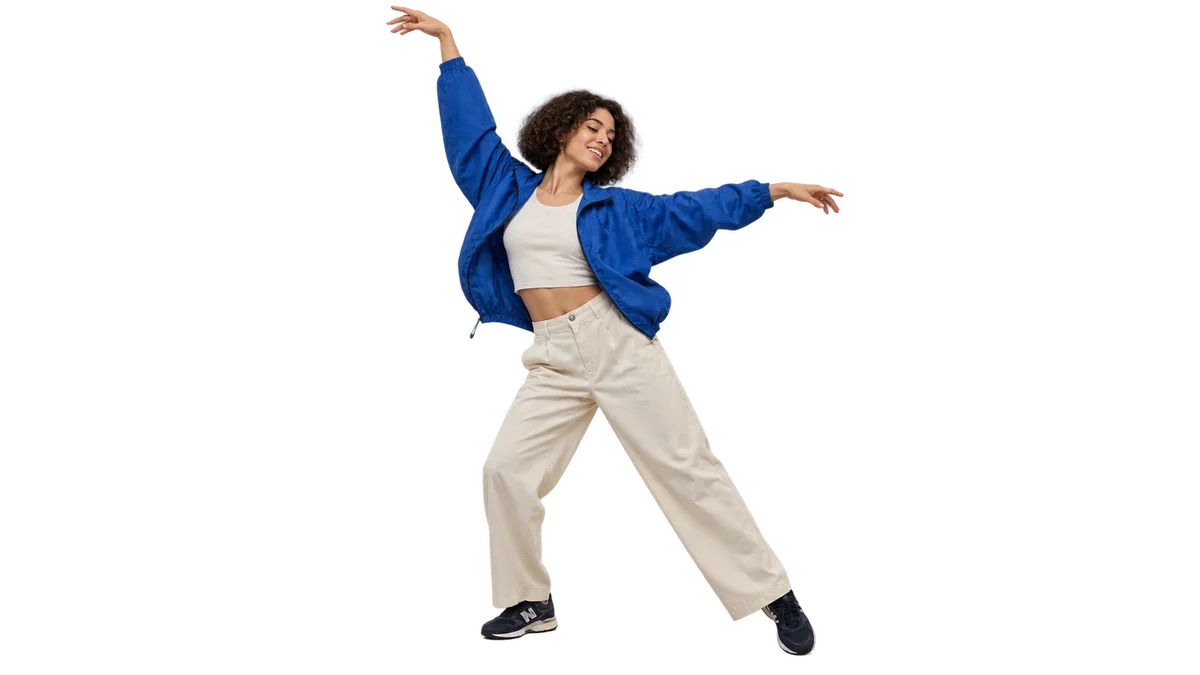
Separate the subject and place a color or another video behind it.
Keep the person. Change the setting. Compose a new scene.

 CHANGE
Separate the subject and place a color or another video behind it.
Check the edges and mask to improve the composite.
Treat the separated subject and background as different layers for freeform direction.
Put a solid color or photo behind the subject and add a title to change the composition of an introduction video. Treat the subject and background as separate layers so you can adjust their positions and sizes independently.
Zoom in to check complex details such as hair, fingertips, and clothing edges. Even a still frame that looks clean can have edges flicker in motion, so review the result as video.
Click each step to see the editing order. The actual work takes place in the EditClaws app for Windows.
Separate the subject and place a color or another video behind it.
Check the edges and mask to improve the composite.

Treat the separated subject and background as different layers for freeform direction.
The person-separation model may need to prepare on first use. Once it is ready, apply it to the source and check fast movement and complex edges separately.
Hair, fast motion, and complex backgrounds can need extra correction. The model may need to prepare on first use.
Download the Windows installer and install the app. Create a project in the app to start editing. Some features require a network connection, sign-in, or AI credits.
 PORTRAIT RETOUCH01
Adjust skin and facial details to create a frame that fits the conditions in which it was shot.
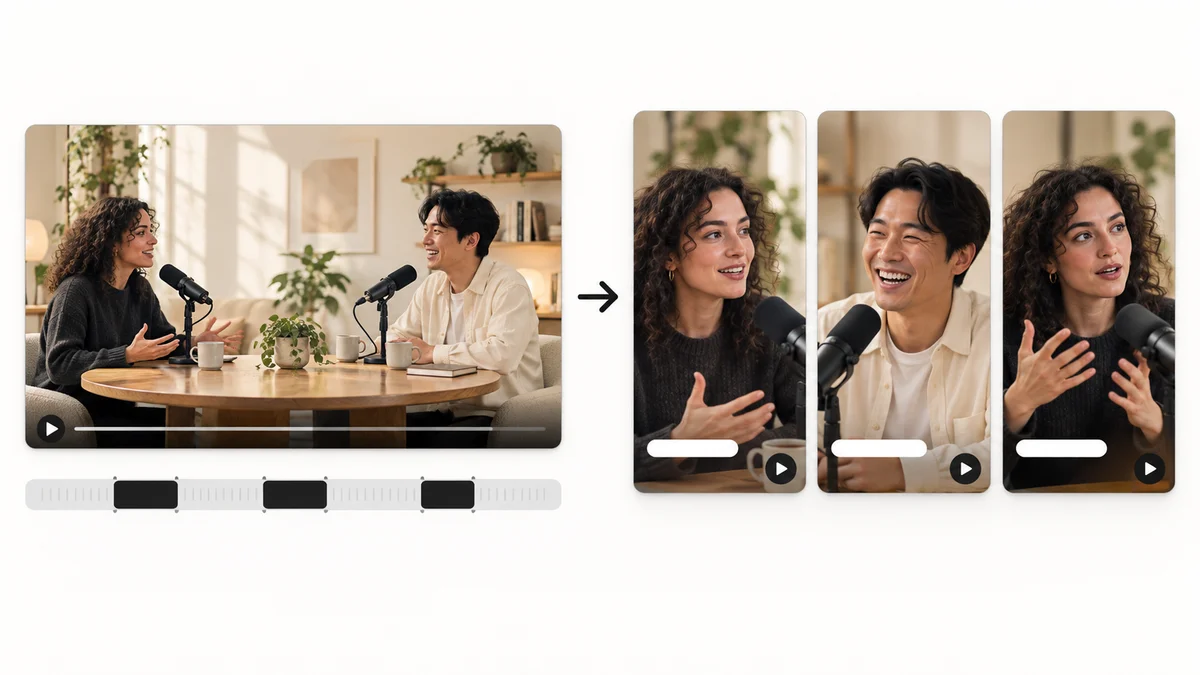 AI HIGHLIGHTS02
Find candidate scenes in long content and reshape them into a story that works as a short video.
 CAPTION TRANSLATION03
Translate source captions into another language and tune their length for the frame to broaden the reach of your content.
Install the app and start with a short clip. Feature guides can help you get started.
Download the app