 EditClaws
Set the mood quickly
Apply a filter preset to find a starting point for the color you want.
Adjust brightness, contrast, and color temperature. Start by making one scene look right, then match the color across the video.

Apply a filter preset to find a starting point for the color you want.
Adjust brightness, contrast, saturation, and other correction controls.
Compare multiple clips and match the tone of the whole video.
Before choosing a filter, fix scenes that are too dark or bright. It is easier to judge the needed intensity when faces and important objects are visible.
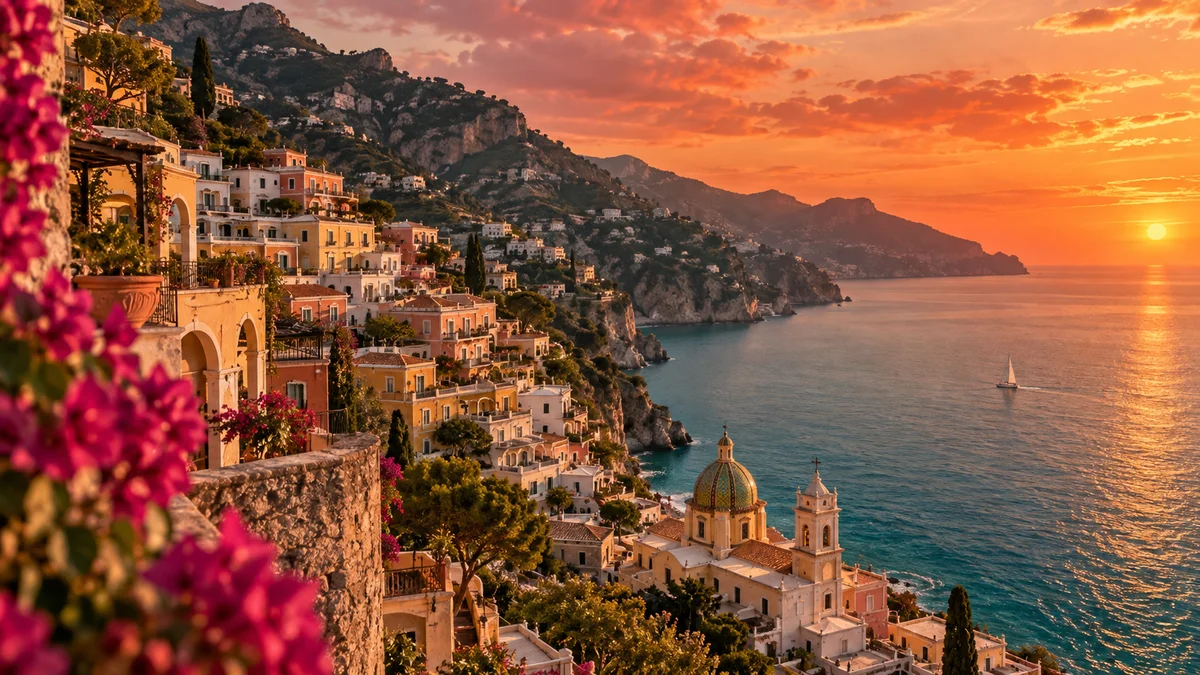
Beautiful scenes can still interrupt the flow when their colors differ sharply. Compare indoor and outdoor shots, or footage from different cameras, and match temperature and contrast.
Click each step to see the editing order. The actual work takes place in the EditClaws app for Windows.
Apply a filter preset to find a starting point for the color you want.
Adjust brightness, contrast, saturation, and other correction controls.
Compare multiple clips and match the tone of the whole video.
The comparison on this page is a staged web demonstration of the feature. Actual results in the app vary with the source video and selected filters and settings.
The color comparison below is a staged homepage example. Actual editing results vary with the source and settings.
Download the Windows installer and install the app. Create a project in the app to start editing. Some features require a network connection, sign-in, or AI credits.
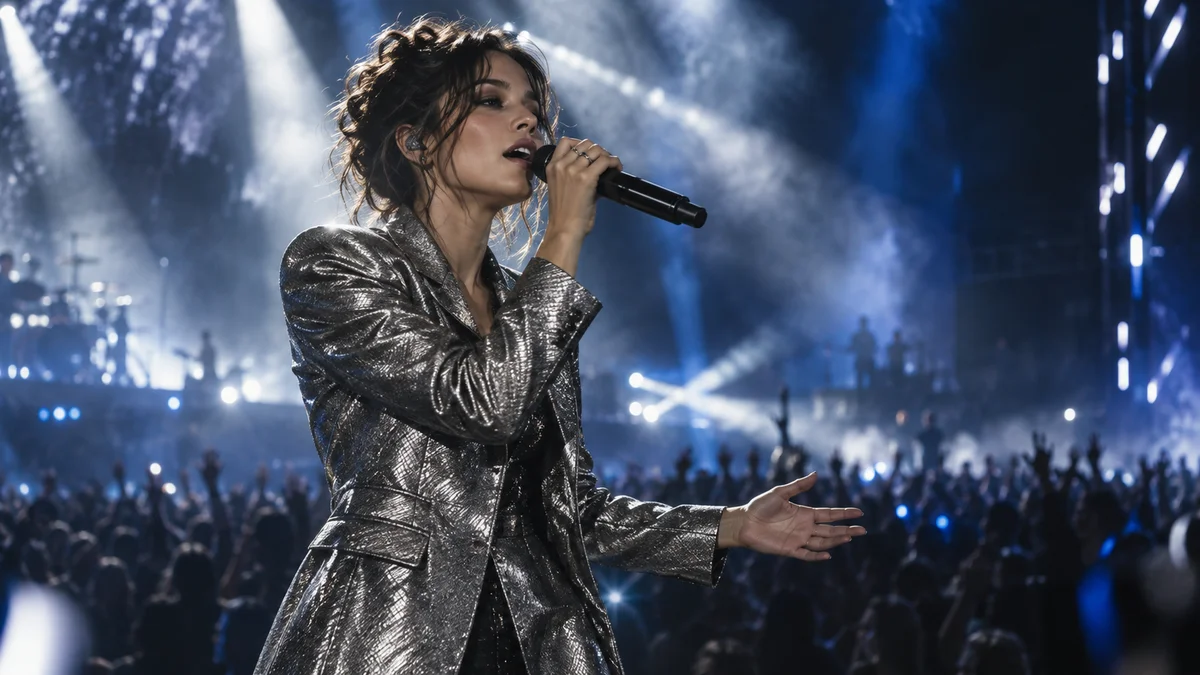 TRANSITIONS01
Refine transition effects and duration so scenes flow naturally or leave a strong impression.
VIDEO EFFECTS02Bring out the character of a scene with visual effects such as glitch, light, and texture.
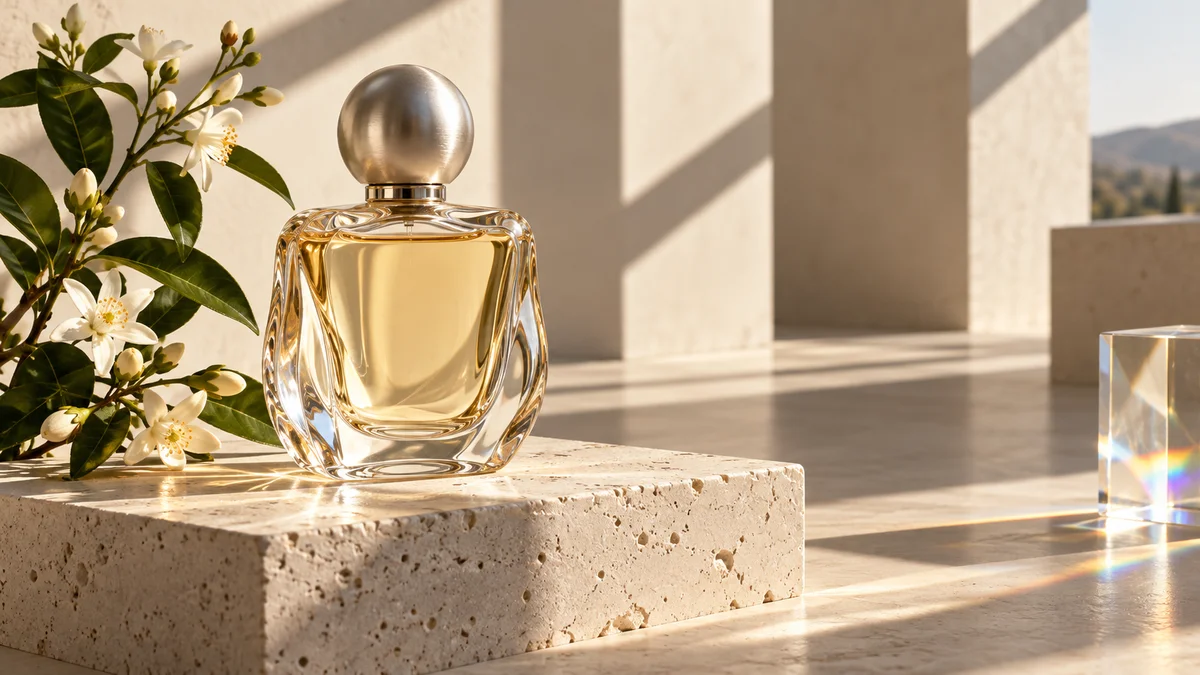 MASKS & COMPOSITING03
Reveal or hide part of a video, composite layers, and make a new screen composition.
Install the app and start with a short clip. Feature guides can help you get started.
Download the app