 EditClaws
Edit by selecting an area
Set the visible area by adjusting mask shape and range.
Show only part of a video or image and combine it with other layers. Adjust the mask area and edges to bring several scenes into one frame.
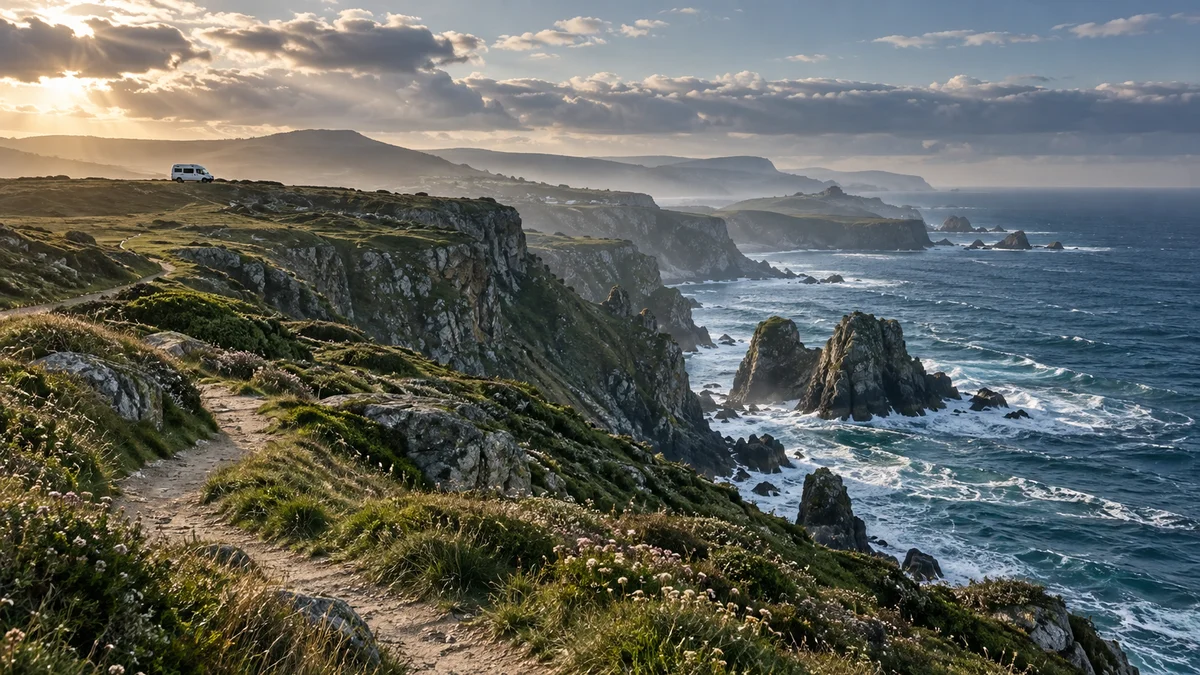
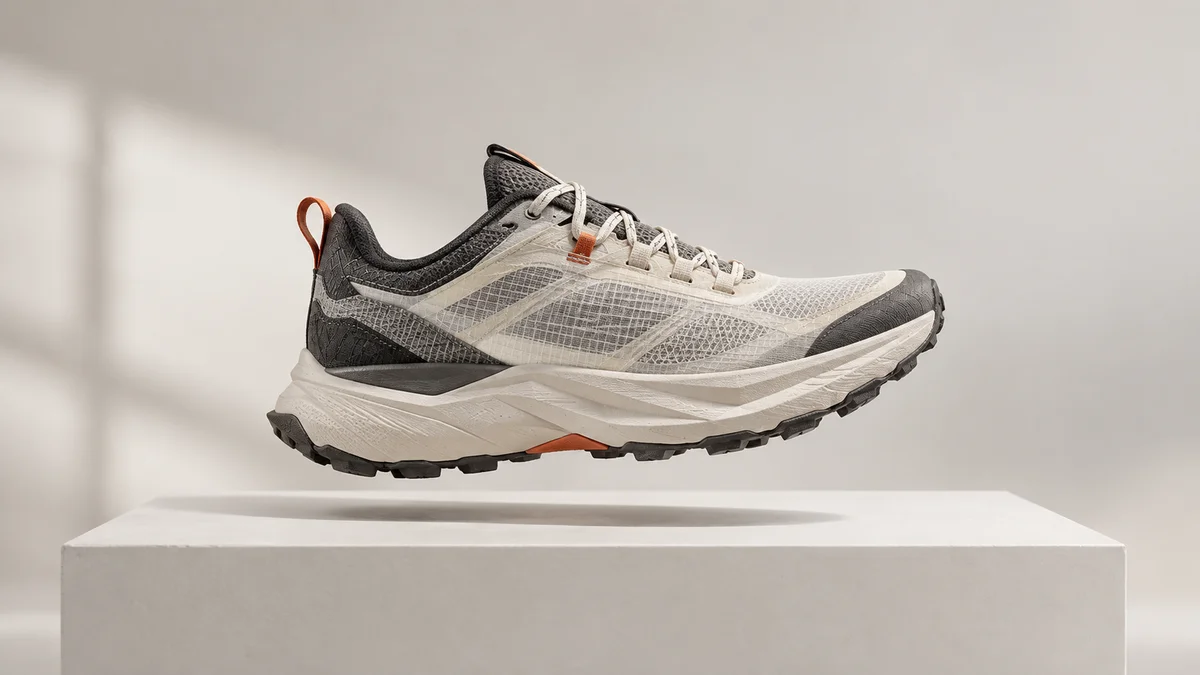
Set the visible area by adjusting mask shape and range.
Refine the edge treatment so it sits naturally with the background.
Connect video and images on upper and lower tracks to make split screens and composites.
Place an enlarged detail beside the full product photo. Choosing the visible area with a mask lets you explain small features such as material or texture together.
A sharply divided split screen needs a different edge from a naturally overlapping composite. Adjust the area and edge softness while checking how it connects to the layer below.
Click each step to see the editing order. The actual work takes place in the EditClaws app for Windows.
Set the visible area by adjusting mask shape and range.
Refine the edge treatment so it sits naturally with the background.

Connect video and images on upper and lower tracks to make split screens and composites.
A mask lets you define the visible area yourself; portrait background removal separates a person from the background. Choose one for the task or use them together.
Available mask shapes and properties vary by element.
Download the Windows installer and install the app. Create a project in the app to start editing. Some features require a network connection, sign-in, or AI credits.
 TRANSITIONS01
Refine transition effects and duration so scenes flow naturally or leave a strong impression.
 COLOR & FILTERS02
Adjust brightness and color in captured footage, then use filters to create a consistent mood.
VIDEO EFFECTS03Bring out the character of a scene with visual effects such as glitch, light, and texture.
Install the app and start with a short clip. Feature guides can help you get started.
Download the app