 EditClaws
Find highlight candidates
Look for short sections from the video’s conversation and scenes.
Find key moments in long videos. Start your clips with AI-suggested selections.
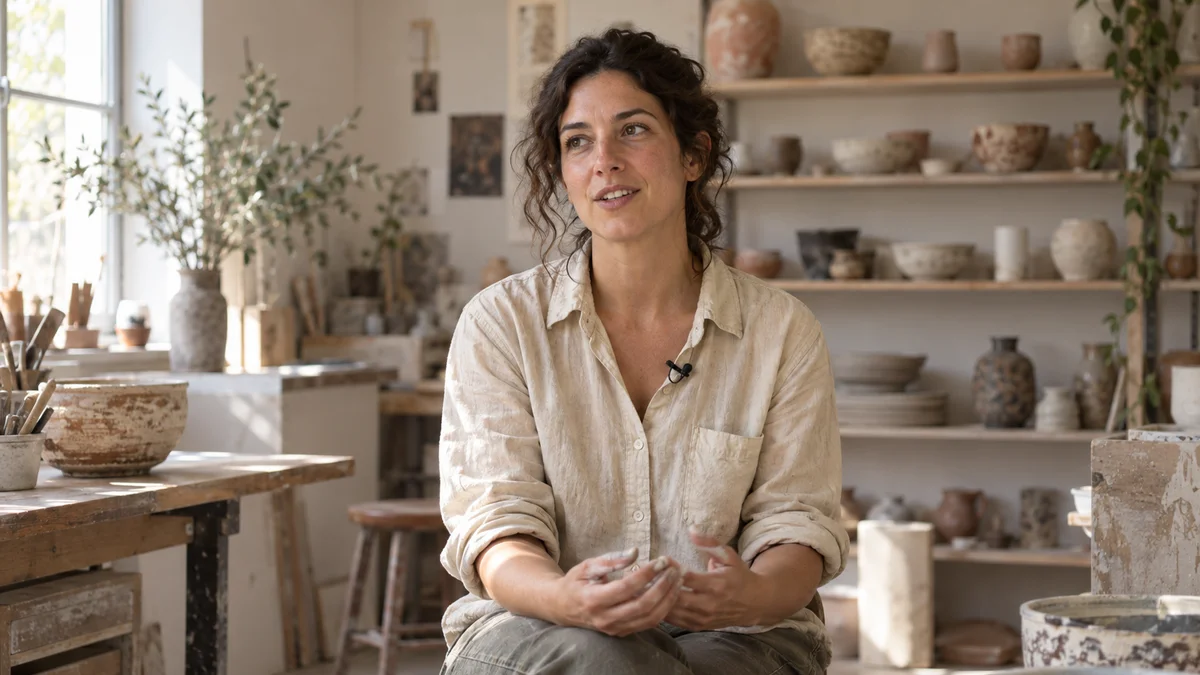 16:9 · Landscape source01 / 9:16Story opening02 / 9:16Work in detail03 / 9:16The finished result
Look for short sections from the video’s conversation and scenes.
Check subject position and captions, then adjust for short-form framing.
Review candidates and refine the start, end, title, and captions before finishing.
Use AI analysis to find short sections worth sharing from a long conversation or explanation. Check the suggested start and end yourself and decide whether the meaning comes through without the surrounding explanation.
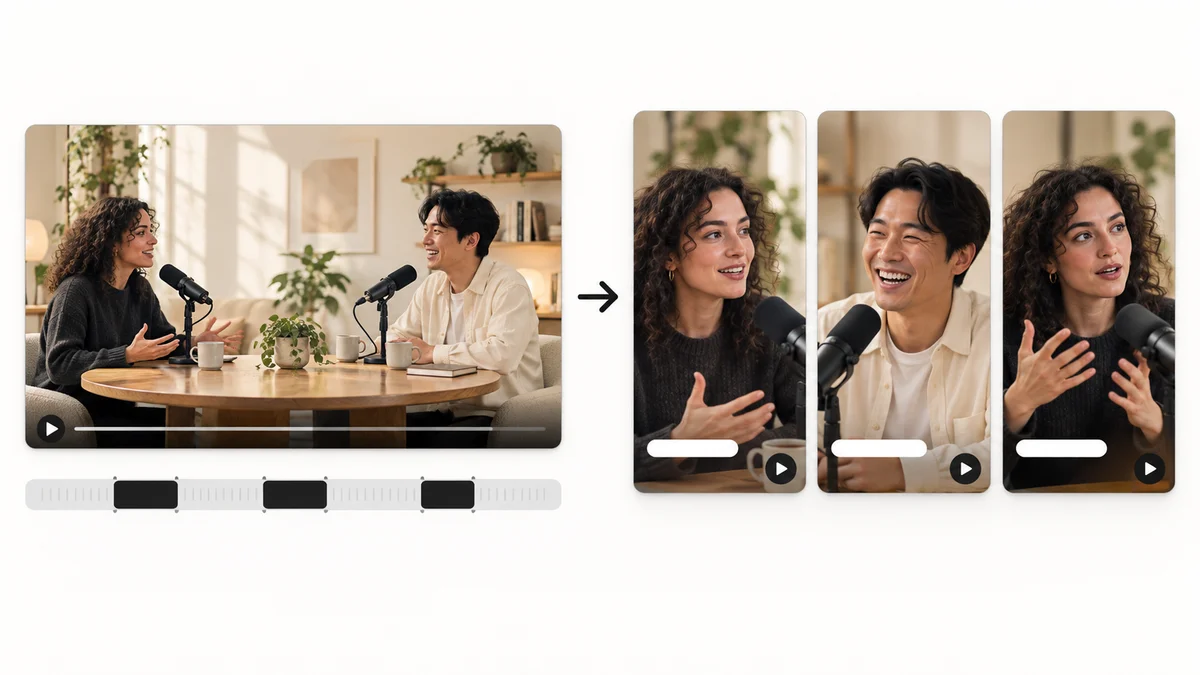
Fit the selected scene’s composition and captions to a portrait frame. Check that faces and demonstrated objects are not cut off, and that the content makes sense from the opening scene alone.
Click each step to see the editing order. The actual work takes place in the EditClaws app for Windows.
Look for short sections from the video’s conversation and scenes.
Check subject position and captions, then adjust for short-form framing.
Review candidates and refine the start, end, title, and captions before finishing.
The workflow is to review candidates and decide which scenes and edits to use yourself. Treat automated suggestions as a starting point and check the section, composition, and captions.
Highlight Shorts requires Premium. AI transcription, analysis, and any selected translation or voice generation use additional credits. Review the context and accuracy of every suggested scene yourself.
Download the Windows installer and install the app. Create a project in the app to start editing. Some features require a network connection, sign-in, or AI credits.
 BACKGROUND REMOVAL✧ REMOVE BACKGROUND
Separate a subject from its background, composite a new scene, and expand the story inside the frame.
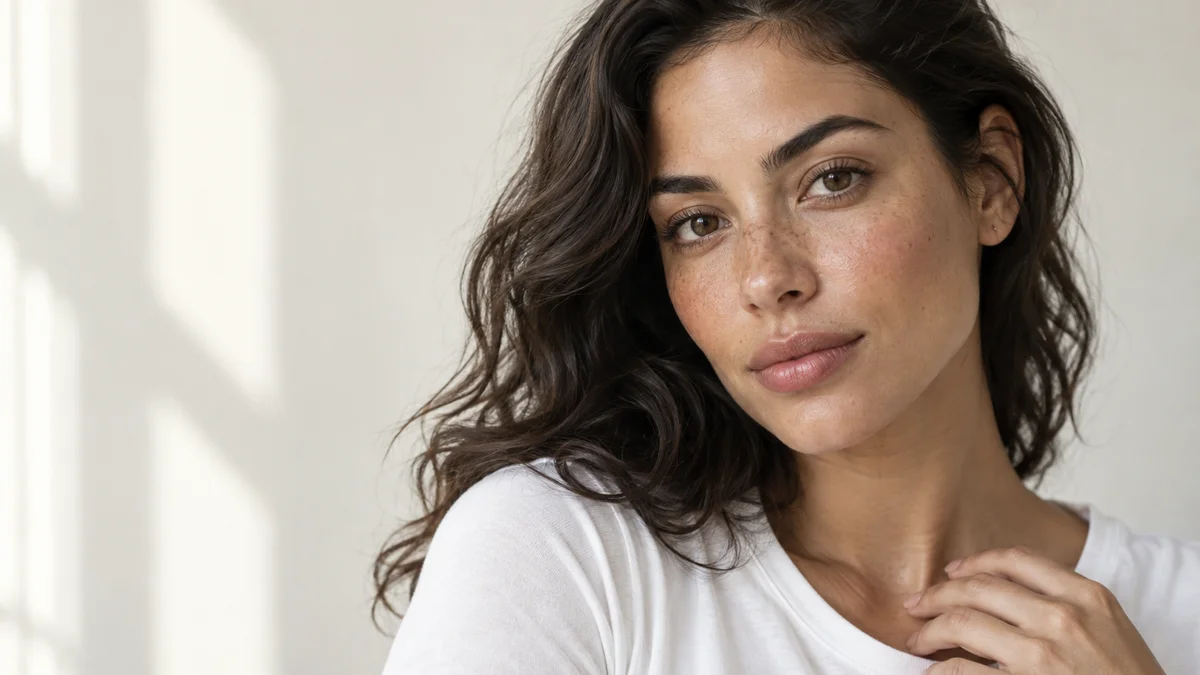 PORTRAIT RETOUCH02
Adjust skin and facial details to create a frame that fits the conditions in which it was shot.
 CAPTION TRANSLATION03
Translate source captions into another language and tune their length for the frame to broaden the reach of your content.
Install the app and start with a short clip. Feature guides can help you get started.
Download the app