 EditClaws
Build scenes freely
Separate video, audio, and text tracks so even complex edits stay easy to scan.
Layer supporting footage over interviews, then refine music and captions separately. Organize several sources on one timeline to see the flow of the video.


 010203
Separate video, audio, and text tracks so even complex edits stay easy to scan.
Split clips and adjust their endpoints to keep only the moments you need. Continue with a zoomed-in timeline for fine edits.
Follow your edit history to undo and redo changes while trying different directions.
Keep the interview audio and place working footage on another track. Editing the explanation and supporting visuals separately makes it easy to change a shot without losing the flow of the conversation.
Separate video, conversation, background music, and captions so you can quickly find what needs changing. Tidy the cuts first, then match the music and caption timing.
Click each step to see the editing order. The actual work takes place in the EditClaws app for Windows.
Separate video, audio, and text tracks so even complex edits stay easy to scan.
Split clips and adjust their endpoints to keep only the moments you need. Continue with a zoomed-in timeline for fine edits.

Follow your edit history to undo and redo changes while trying different directions.
Place video on multiple tracks and adjust its position and size to overlap the scenes. Check the preview to see how much the upper layer covers the scene below.
Playback and export performance varies with the source resolution and device.
Download the Windows installer and install the app. Create a project in the app to start editing. Some features require a network connection, sign-in, or AI credits.
 TRIM & SPLIT01
Cut away slow openings and empty space, then decide exactly where each scene begins and ends.
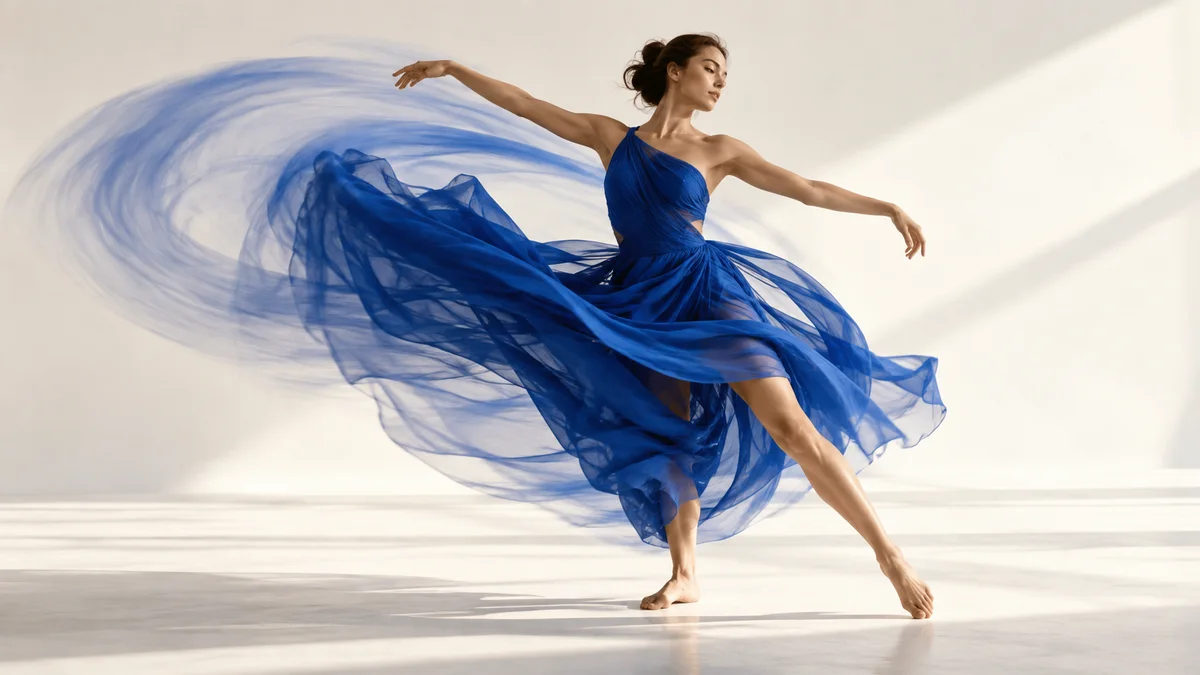 KEYFRAME ANIMATION
Place changes in position, size, rotation, and opacity over time to design movement that is yours.
 SPEED CONTROL03
Change a scene’s playback speed to give even ordinary movement a new rhythm.
Install the app and start with a short clip. Feature guides can help you get started.
Download the app